Getting Started
Store Switching & Access
Navigate between multiple stores and understand the dashboard layout.
Dashboard Overview
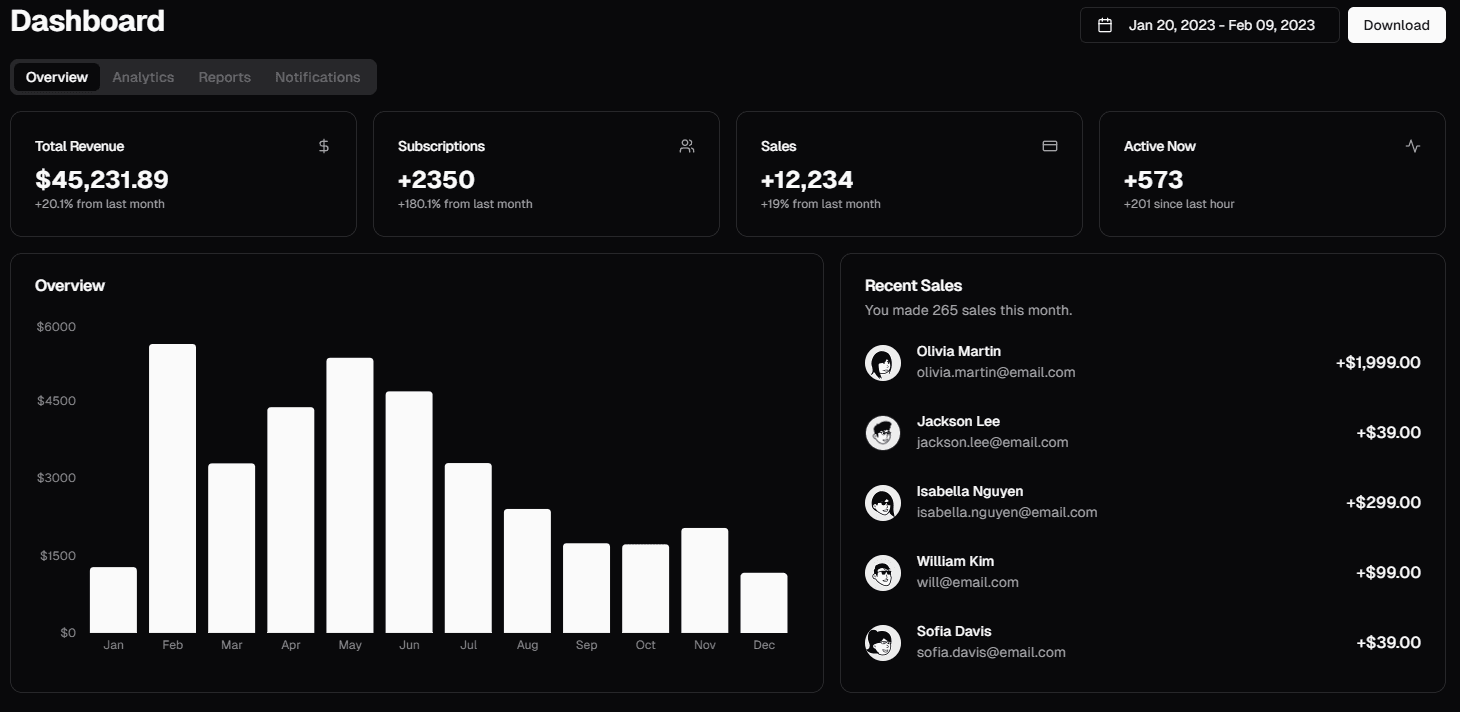
When you visit /dashboard, you'll see all stores you have access to as cards. Each card shows the store name, subdomain, and quick stats.
How to Switch Stores
Go to Dashboard Home
Navigate to /dashboard from any page. You can use the sidebar home link or go directly via the URL.
Select a Store
Click on any store card to enter that store's dashboard at /dashboard/{storeId}. All subsequent actions will apply to this store context.
Important
All data in the dashboard (products, orders, inventory, settings) is scoped to the active store. Make sure you're in the correct store before making changes.
Creating Additional Stores
You can create more stores from the dashboard home page by clicking Create Store. Each store gets:
- Its own subdomain (e.g.,
your-store.bstia.app) - Independent products, orders, and settings
- Separate delivery pricing and notification preferences
Next Steps
- Publish First Product — Add your first listing
Required Access
Roles:owneradminmember